Showing posts with label FI. Show all posts

Friday, October 12, 2012

What is a Vendor Invoice?

Following with basic financial concepts, what is a Vendor Invoice?

Easy, a Vendor Invoice is an accounting document.

Yes, but what it represents? It’s a “request” for payment of whichever thing we received from a provider.

There are two types of Vendor Invoices:

- Non-purchase order based invoices.

In this case, we have not any purchase order created previously. We have to pay to the provider for some service, for example the rent. The invoice is posted directly in General Ledger, debiting in the expense account and crediting in the vendor Account.

SAP Transaction to create the Non-PO-Based Invoice is FB60 or following the path:

SAP Menu->Accounting->Financial Accounting->Accounts Payable->Document Entry->FB60 – Invoice

Before save (post) the invoice you can simulate with button ‘Simulate’.


- Purchase order based invoices.

In this case, we have a previous purchase order requesting some good or services. Also, that service or good has been received against the purchasing order creating the “Good Receipt” document in MM module, debiting in the Inventory Account and Crediting GR/IR clearing account (this account is used to post goods/services which have not been invoiced.

Once we have received the goods/services we can create the Vendor Invoice referencing the purchase order previously created, debiting the GR/IR clearing account and crediting the Vendor Account.

SAP transaction to create the PO-Based Invoice is MIRO or following the path: 

SAP Menu->Logistics->Material Management->Logistics Invoice Verification->Document Entry->MIRO-Enter Invoice


When you enter de invoice data including the purchase order and post the document, the invoice number document is created. If that document has the status “Blocked for payment”, it is blocked for payment and has to be released before proceed with the payment.

That blocking is performed by the invoice verification process, consisting on match the price and quantity of PO, GR and Invoice (taking into account tolerances). If they do not match, SAP will block the invoice for payment.

To unblock the invoice you can use SAP transaction MRBR or following the path:

SAP Menu->Logistics->Material Management->Logistics Invoice Verification->Further Processing->MRBR-Release Blocked Invoices

Entering the proper data you will able to select the correct invoice to unblock. With the invoice selected, click on the flag button to release it. The status will change to “Released”.

Exchange Rates

This is a brief posting about Exchange Rates in SAP.

Exchange rates are maintained in transaction OB08.

Take into account that is possible to have several exchange rates for a specific date using the Exchange Rate type. Standard Average rate type (M) is used in accounting to convert document currency to local currency if apply.

With transaction OB22 you can change this setting and with transaction OC47 you can set up exchange rate types.

Wednesday, September 19, 2012

What is a Customer Credit Memo?

After talk about the customer invoice, it’s time to talk about Customer Credit Memo. What is it?

Customer Credit Memo also is an accounting document. Yes, but what it represents?

Easy, it is a document to reduce the amount to be paid by a customer. For example if a customer performs a return of goods, a Customer Credit Memo should be created in the system. In this case, the creation of this accounting document will credit the customer account.

The Customer Credit Memo can be created using transaction FB75 or F-27. Also following this path:

SAP Menu->Accounting->Financial Accounting->Accounts Receivable->Document Entry->FB75 – Credit Memo or F-27 Credit Memo General


Tuesday, August 14, 2012

What is a Customer Invoice?

What is a Customer Invoice? 

Good question, a customer invoice is an accounting document.

Yes, but what it represents? It’s a request for payment of whichever thing provided to a customer.

Transaction to enter a customer invoice is FB70 or F-22. Also could be entered following the path:

SAP Menu->Accouting->Financial Accouting->Accounts Receivable->Document Entry-> FB70 Invoice or F-22 – Invoice General

When we are creating the customer invoice, we will enter in the first tab the Basic Data, like Posting date, Invoice Date, Currency, text, calculate tax (if apply), the customer number in the customer field… and don’t forget to enter In Payment tab the payment terms.

If you want to simulate the post of the document, the “Simulate” button is available. Very useful, once you agree with the displayed results by the simulation, the document could be posted using the “Save” button.


Monday, August 13, 2012

Financial Statement

Year-end closing is a complex task in whichever Company. A lot of activities are performed and many departments usually work on it.

As part of that stage the creation of the Financial Statement is very important, always taking into account the legal requirements of the country where the company belongs.

Are you now involved on this task? To perform it, previously you have to define a Financial Statement Version, matching with the layout of the required financial statement. The transaction to create the Financial Statement version is OB58.

The output of the execution could be configured to match with your requirements (using ABAP list viewer).

SAP provides transaction S_ALR_87012284 to generate the Financial Statement. The corresponding path is:

Accounting->Financial Accounting->General Ledger->Information System->General Ledger Reports (New)->Financial Statement/Cash Flow->General->Actual/Actual Comparisons.


Sunday, August 12, 2012

Customer Master Data

Customers… En SAP we perform a special management of them. Without enter in CRM module, FI-SD offers a good management of customers. Master data is created and shared cross module, being FI and SD the main ones using this master data.

When we create a customer in SAP, several groups of information is entered. The Financial related one can be divided into 2 groups:


  • General Data. Information entered like name, address, language, etc. 
  • Company Code data. This information is related to the company code where the customer is used. Examples of data entered here: recondition account to be used, the payment terms, bank details, the dunning procedure, alternative payer, etc. 

SAP transaction code to enter Customer data is FD01 or XD01. Also following those paths:

SAP Menu->Accounting->Financial Accounting->Accounts Receivable->Master Records->FD01 – Create 

Or 

SAP Menu->Accounting->Financial Accounting->Accounts Receivable->Master Records->Maintain Centrally-> XD01 – Create 

After Customer creation, the data can be shown with FD03 or XD03; and modify with FD02 or XD02.

After that, the changes performed in the mater data can be listed using this transaction: FD04 or XD04. Old and new field values are listed for your checks.


Friday, June 15, 2012

FI Posting with F-02

It’s time to post a FI document in SAP. The system gives you the possibility of use several transactions depending on the nature of the document to post.

Today I am going to use the transaction F-02, for entering G/L Account Posting. This transaction gives you more power in the document entry and more flexibility, for example it gives the possibility of enter the posting key for each item.

The path in SAP Menu is: SAP Menu -> Accounting->Financial Accounting->General Ledger->Posting->F-02 General Posting

Once you have entered header information and items information, click on Document overview icon (landscape icon) to review or double click into information you want to change. Don’t forget, it’s a good practice, Simulate the posting before perform the save action. With Simulation you can see the lines to be generated with the post, even the automatic one to be generated.


Wednesday, June 13, 2012

Field Status Group

Thanks for your patient! Some weeks after my last post, today I am talking briefly about the “Field Status Group”.

The FSG determines the fields to be entered in a document during the posting process. With the proper use of the FSG you could decide the mandatory, optional or hidden fields during the process.

The screen where you are entering data will reflect exactly your decision of hide or not, set as mandatory or not, the defined process.

The path in customizing to set the FSG is:

SAP Customizing Implemantion Guide-> Entreprise Controlling->Consolidation->Intergration: Preparation for Consolidation->Preparation in the Sender System->Further Settings for Business Area Consolidations->Financial Accounting->Maintain Field Status Groups for G/L Accounts


Wednesday, May 2, 2012

Splitting in General Accounting

To set-up the splitting in SAP, following steps have to be performed. Path in customizing to perform those steps is: Financial Accounting (New)->General Ledger Accounting (New)->Business Transactions->Document Splitting


1) Classify G/L Accounts for Document Splitting.
It is specified the item category and the account ranges to be managed in the splitting (Item category is derived from account type. For example, Vendors).

2) Classify Document Types for Document Splitting.
Each document type is associated to a business transaction type, so entering the business transaction and the variant in this screen, the corresponding type of document appear in this customizing.

3) Define Document splitting characteristic for General Ledger - Field “Zero Balance”: If you mark the flag, when the characteristic is not equal to zero, the system generates automatically a clearing line for balance purpose.
- Field “Partner field”: Is you specify this field, a sender/received relationship is documented the clearing line created additionally.
- Field “Mandatory field”: To force to fill a value.

4) Edit Constants for Nonassigned processes
In customizing also is defined which constant is set when the derivation is not possible, for example “Dummy” (Edit Constant for no assignment processes).

5) Activate Document splitting
Splitting has to be activated in customizing and select the method for the splitting.
- Field “Inheritance”: If you mark this flag, the document splitting characteristics for General Accounting are forwarded to lines that not have any assignments.
- Field “Standard Account Assignment”: A constant value is inherited in the splitting lines.

6) Extended Document Splitting->Define Document Splitting Method
Is defined the method to be used in the previous step when we are activating the splitting.

7) Extended Document Splitting->Define Document Splitting Rule
Perhaps this is the most important step in the splitting. During the process of splitting each business transaction entered here is analyzed specifying its business transaction variant. The splitting will be done following a “Processing category” specified, for example “1-Splliting based on base item categories”. And in this step also we specified which those base item categories are in order to perform correctly the splitting.

8) Extended Document Splitting->Assign Document Splitting Method
Is the same step than step 5.

9) Extended Document Splitting->Define Business transaction Variants
Variants used in step 7 are defined here and item categories are assigned to the variants in order to be used also in step 7.

To have a clear picture for splitting, the best option is show an example. If have these customizing done following previous steps:

Step1: (Accounts to be split) Item Category “0001” for Vendor accounts from 4000000 to 4100000. Also we have the Item Categories used as base for the splitting, for example “0002” will be Expenses and “0003” will be Revenues.

Step2: (Documents to be split) Business transaction “0001” with variant “0001”for documents KR (Vendor Invoices)

Step3: Profit Center has been selected for splitting

Step4: None in this example.

Step5: Method “0000000001” is activated, with Inheritance.

Step6: Method “0000000001” is defined.

Step7: For method “0000000001”, business transaction “0001” and variant (KR Invoices) and item category “0001” (vendor accounts 4000000 to 4100000) the splitting will be done following the “Processing Category” for example “1” where means “Splitting based on base item categories” and in this case we will indicate the “base item categories” to perform the splitting, for example item category “0002” Expenses and “0003” Revenues.

Step8: Same than 5.

Step9: Is defined the variant “0001”.

With this example when we enter a Vendor Invoice KR and we use 1 vendor account between 4000000 and 410000 and 2 expenses accounts (each one with a different profit center), the splitting will split the item line of the vendor in two items, because the item of the vendor fulfill with the configuration to be done the splitting, and the splitting will be done in base on the two items of expenses (as has been specified in the configuration), so the new two lines of the vendor will have each one a different profit center assigned, one from the first expense and other one from the second. 

Monday, April 30, 2012

Ledger Scenarios

In this post we will explain the meaning of term "Scenario" in Financial Accounting. In first place, it is important to know that Scenarios are assigned to Ledgers. To have a clear picture about the concept of Scenario this could be a good definition: "A Scenario defines the fields to be transferred from different application components in General Ledger Accounting".

In Customizing, to assign a scenario to a Ledger, we follow this path:


Also in customizing, to display the fields for a scenario, we follow the path:


For using in your particular project, SAP provides several standard scenarios as “Cost Center update”, “Profit Center update”, etc, but it is possible to create customer ones if any of previous ones match your needs.

To finish this post, when we assign a scenario to a Ledger we have to take into account the performance. A great quantity of assigned scenarios could low the system performance.

Standard totals table

It's sure that you have used those tables in whichever moment of your SAP life. They are very useful, functionally or technically speaking. SAP provides Totals Table in Financial area and Funds Management area containing several available fields (Profit center, segment, functional area, etc). The tables allow distinction between leading ledger and non.leading ledger.

Also, it is important to know that the tables allow field enhancements to adapt them to our needs.

FI Area: FAGLFLEXT
FM Area: FMGLFLEXT

In customizing the tables are specified following the path:

Activation of New General Ledger

A small action, a big change! The benefits of the New General Ledger is explained in a separated post. Now we indicate how to activate it. New General ledger is activated following the path in customizing:

SPRO-> SAP Customizing Implementation Guide->Financial Accounting>Financial Accouting Global Settings->Activate New General Ledger Accounting


The activation will modify paths in customizing, changing the menu to “Financial Accounting (New)” and “General Ledger Accounting (New)”.

New General Ledger

What say about New GL? The response is easy: The use of New General Ledger provides some advantages in compassion with previous versions.
  • More Integration, most of ledgers are integrated into one with less cost of reconciliation and closing effort.
  • Easier to maintain than classic GL.
  • Document splitting in real time, it allows obtain balances at more detailed level than company code.
  • Integration in real time from CO to FI.
  • Segment reporting. Information at segment level.
  • More power in Reporting because we obtain lower level of detail.
  • Parallel ledgers (leading ledgers [0L] and non-leading ledgers), to provide the information following different financial principles.
  • Customized fields can be added to the ledger.

Main components of Financial Accounting

This is a short post... but important! Although there are several sub modules included in FI, the four related in this post are the common ones in a SAP installation:
  • FI-GL. General Ledger Accounting. It is the main module; it provides the central picture for external accounting.
  • FI-AP. Accounts Payable. Accounting data for Vendors, closely related with purchasing module.
  • FI-AR. Accounts Receivable. Accounting data for Customers, closely related with sales module.
  • FI-AA. Assets Management. The module manage assets from the acquisition to the retirement, and the evolved calculations (depreciation, etc)

Company Code is Productive

With SAP transaction OBY6 we set Company Code global data.

In particular there is a checkbox called “Company Code is Productive”. If you mark the checkbox, the Transactional Data or Master Data can not be deleted from the system.

Usually the flag is marked in production environment but not in development or integration environment because it could be useful for test purposes delete the data created during a test phase in order to have the system clean of data for the starting of following test phase.

Additionally to SAP transaction OBY6, the checkbox could be reached in customizing (SPRO) following the path:


or the path:


Sunday, April 29, 2012

Validation of Accounting Document

SAP transaction for creating validations in FI Module is OB28. Also there is a global transaction GGB0 where the developer can create validations in others SAP modules, included FI.

With the new Financial Acounting (New), there are several paths to reach the transaction from Customizing (SPRO transaction), for example:


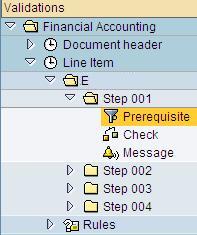
One validation can be built by a large number of steps (up to 999) and each step is described by following statements:

Prerequisite: Determines when the value entered should be checked.

Check: Determines when the value entered is valid. Is True the transaction continue, else a message is displayed.

Message: Determine the message to be shown if the check is false.


SAP Functional - FI

Activation of New General Ledger
Automatic Payments
Banks in SAP
Company Code is Productive
Customer Master Data
Display Vendor Line Items
Document Changes
Exchange Rates
Field Status Group
Financial Statement
FI Posting with F-02
Ledger Scenarios
Main components of Financial Accounting
New General Ledger
Number Ranges for Accounting Documents
Park FI Document
Reverse a FI Document
Splitting in General Accounting
Standard totals table
Validation of Accounting Document
What is a Customer Credit Memo?
What is a Customer Invoice?
What is a Vendor Invoice?
Withholding tax